How to Optimize Blog Images: Portraits, Landscapes, and Page Speed
Blog images help readers understand a story, but they also affect how quickly the story loads. A good image workflow considers composition and meaning alongside dimensions, format, bytes, and accessible text. Uploading an untouched camera file wastes bandwidth even if it looks fine on a fast desktop connection.
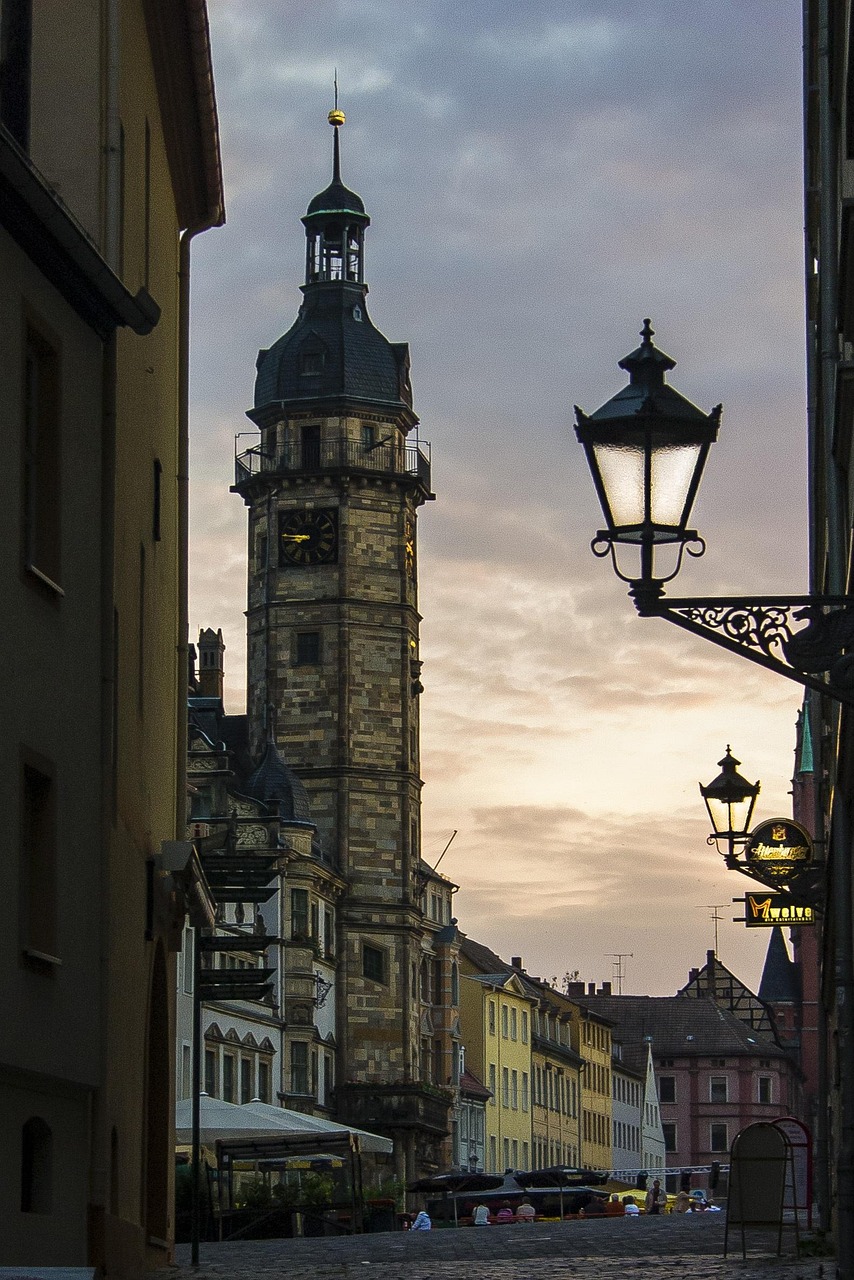
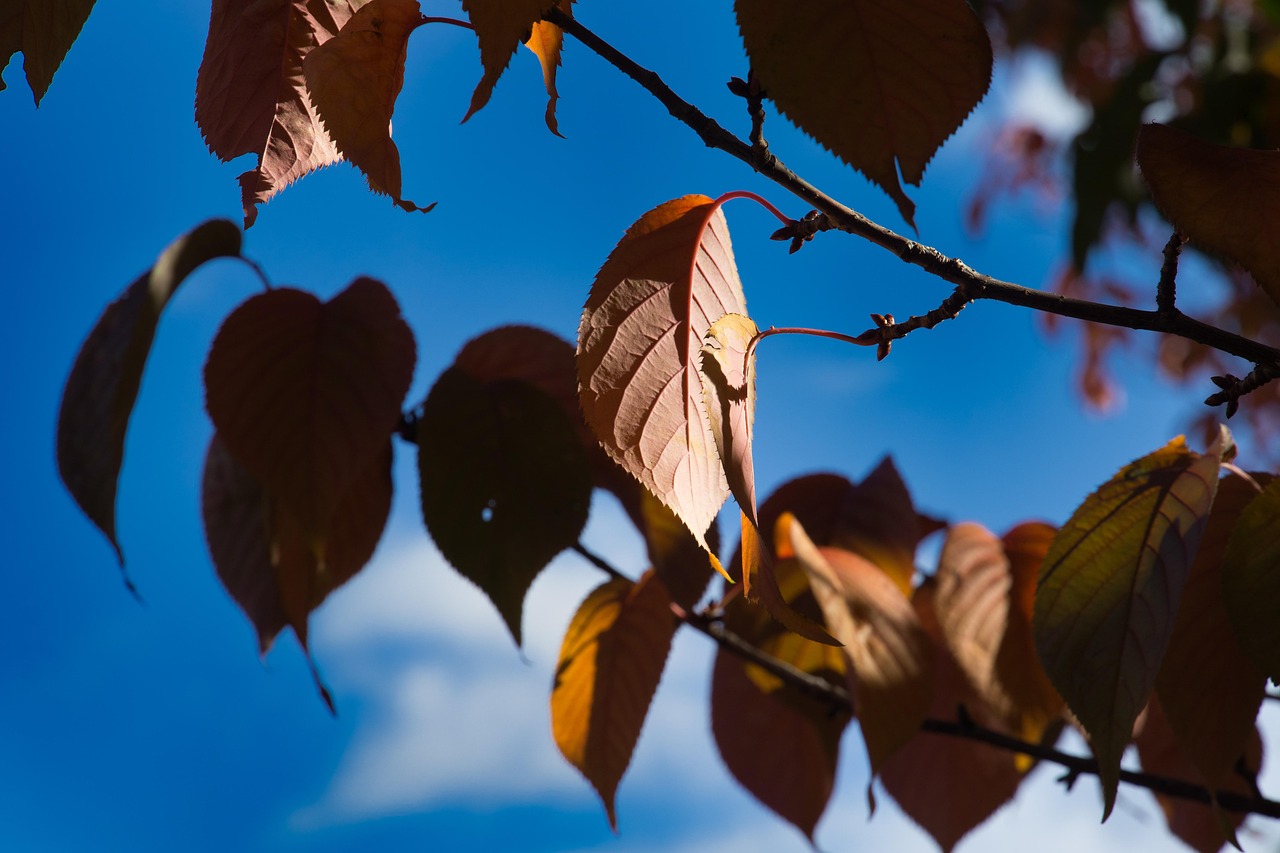
This guide uses two real photographs: a portrait-oriented town clock tower and a landscape-oriented close-up of autumn leaves. The aim is not the smallest possible file. It is enough detail for the place where each photo appears, without asking readers to download pixels they cannot see.
Set the display size before compressing
A 4000-pixel camera original does not become a smaller download merely because CSS shows it at 800 pixels. Check the maximum width of the article column first. A practical export is often 1.5–2 times the displayed width to support high-density screens: a 1200–1600-pixel landscape for an 800-pixel column, for example. A portrait capped at 640 CSS pixels may only need a 960–1280-pixel-wide source.
Resize before encoding. Otherwise, the encoder spends bytes preserving detail that the final layout will throw away. Keep the full-resolution original separately for later crops or prints.
Landscape and portrait photos serve different reading patterns
A landscape image usually spans the article width and works well as an opening or section image. Readers take in the overall composition first, so it should appear promptly. A portrait image may be useful for buildings and people, but an unrestricted portrait can occupy several screens on a phone. Cap its display width so readers can return to the text.
The tower has dark branches and windows against a bright sky, where JPEG ringing and halos are easy to spot. Inspect it on both phone and desktop. For a first-screen hero image, do not use lazy loading. Below-the-fold images can use loading="lazy". Always provide width and height or a stable aspect ratio so loading does not shift the page.
Compare JPEG and WebP for photos
JPEG is a dependable choice across publishing systems; WebP often achieves a smaller file at a similar appearance in modern browsers. Neither automatically wins. Export the same image both ways at the intended display size, then compare the real bytes and critical visual areas.
For the leaves, low JPEG quality can blur thin twigs, dirty the transition between red and yellow, and turn the smooth background into bands. Prefer WebP if it avoids those issues and reduces size. If a CMS or downstream service has unreliable WebP support, JPEG remains a sensible option. For transparent graphics, screenshots, and text-heavy images, compare PNG, WebP, or SVG instead; see the format guide.
Inspect four stable locations in the comparison view
Run the image compressor once, then compare source and result at the same zoom. A percentage saved says nothing about whether a critical area survived.
| Subject | Check | If it deteriorates |
|---|---|---|
| Town buildings | Windows, tower outline, branches against sky | Raise quality 5–10 or resize before encoding |
| Leaves and flowers | Leaf edges, fine twigs, adjacent bright colors | Watch for blocks and dirty colors; compare WebP |
| People and animals | Eyes, hair or fur, silhouette | Preserve the subject before chasing size |
| Sky or blurred background | Smooth tonal changes | Raise quality if bands appear |
Change one factor at a time. If an upload imposes a hard limit, resize first and then try a 100 KB or 200 KB target. The target is a constraint, not a measure of visual quality.
Image SEO depends on useful context, not keyword stuffing
Three small pieces of text help both readers and search engines: filename, alt text, and caption. Name the subject plainly, such as town-tower-autumn.jpg, instead of IMG_2048.jpg. The filename becomes part of the URL, so keep it short and readable.
Alt text should convey the image's relevant information when it cannot be seen. For the tower, it identifies the building, setting, and detail discussed in the article. "Tower image SEO image compression" would be less useful. Decorative images can have an empty alt. A caption should explain why this image is here: the tower illustrates edge inspection, while the leaves illustrate texture and color transitions.
A final publishing checklist
- Export at a size appropriate for the real layout; do not rely on CSS to shrink a huge original.
- Compare JPEG and WebP for photos; avoid JPEG for transparent graphics and text screenshots.
- Inspect important edges and textures at the final display size.
- Load the first-screen image promptly, lazy-load later images, and set dimensions.
- Use a descriptive filename, accurate alt text, and a caption that adds meaning.
- Verify that the result is smaller and that unneeded EXIF or GPS information is absent. If the tool retained the original because re-encoding was larger, its metadata may also remain.
Image optimization is a publishing decision, not a single batch-compression button. For the exact controls, follow the image compression tutorial, or use the JPEG quality guide for a detailed photo comparison.