Complete Guide to Image Compression
A practical image compression guide covering JPEG quality, PNG colors, WebP, GIF, SVG, comparison previews, and saving results.
How to Use the Image Compressor
Follow four steps: choose images, process them, compare details, and save the results. The screenshots show this site's current interface.
Choose images and add them to the queue
Open the Compress tab on the homepage. Click Select, or drag images into the drop area. You can add several images at once; this tutorial uses a forest landscape so changes in size and detail are easy to see.
Adding a file does not upload or overwrite it. Check the thumbnail and filename, then click Compress.
The image is processed locally in your browser. It is not uploaded to a server.
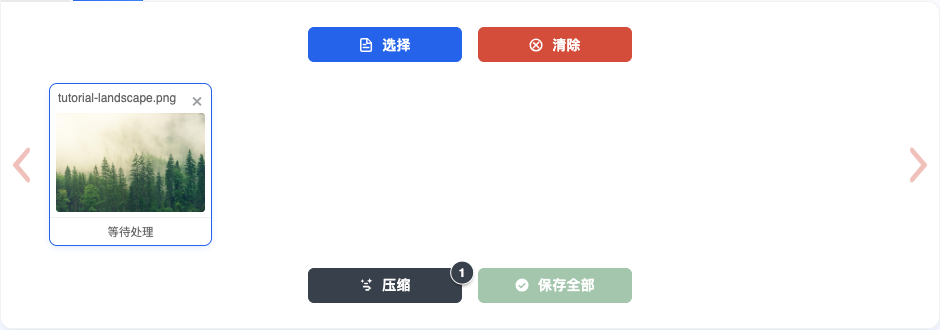
Figure 1: Select or drop the landscape image, confirm its file card appears, then start compression. Compress and inspect the first result
Click Compress below the queue. The default method depends on the format: JPEG and WebP primarily adjust quality, while PNG and GIF use palette-based approaches.
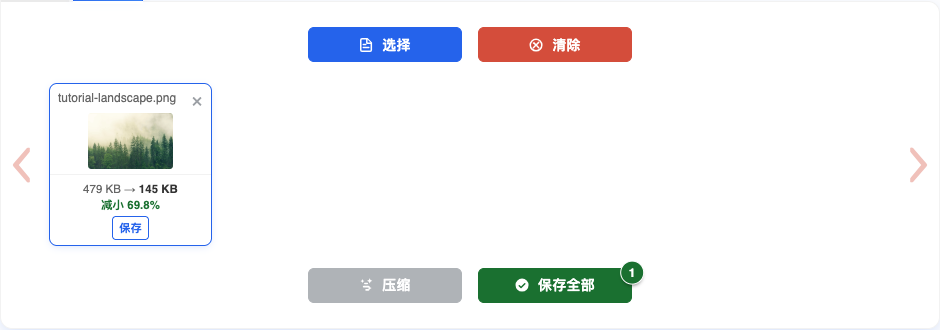
Once processing finishes, compare the original size, result size, and reduction shown on the file card. If encoding makes a file larger, the tool keeps the original instead of presenting a larger file as an improvement.
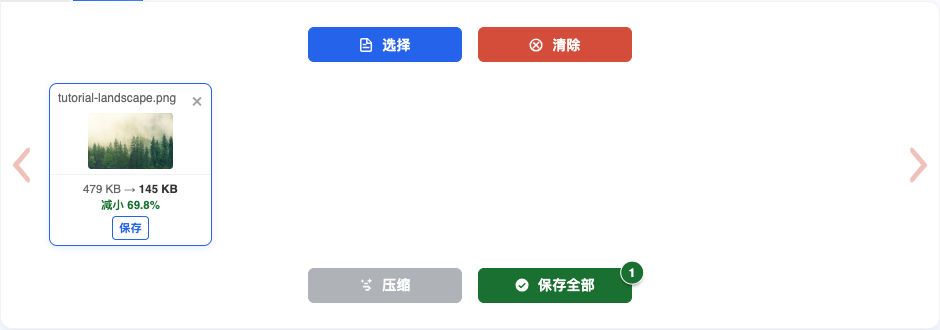
Figure 2: Read the before-and-after sizes and reduction on the completed file card. Compare details and adjust the settings
Open the processed file card to see the comparison view. Move the divider across leaves, branches, mist, and tonal transitions. A small full-image preview alone can hide compression artifacts.
The controls depend on the format: quality for JPEG, WebP, and AVIF; number of colors for PNG and GIF; coordinate precision for SVG. Each change creates a preview. Check it before clicking Apply.
For a much smaller file, consider resizing before lowering quality or color count. Aggressive compression can damage leaf texture and smooth mist or shadow transitions.
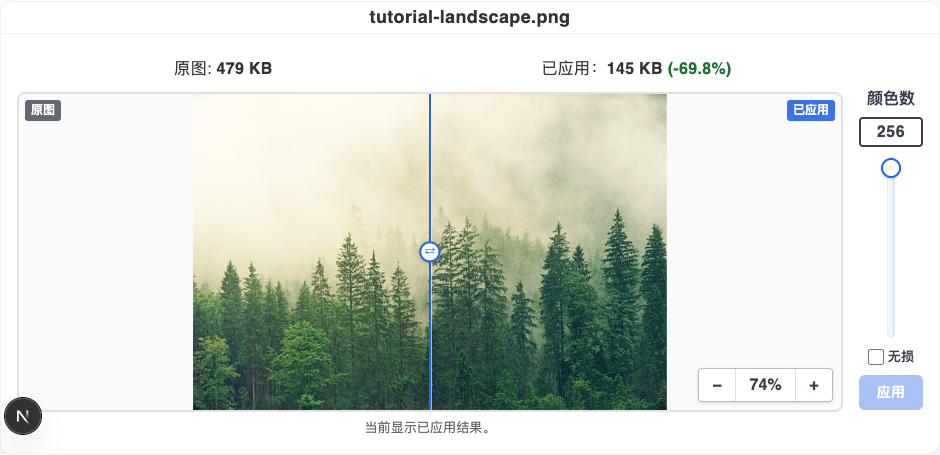
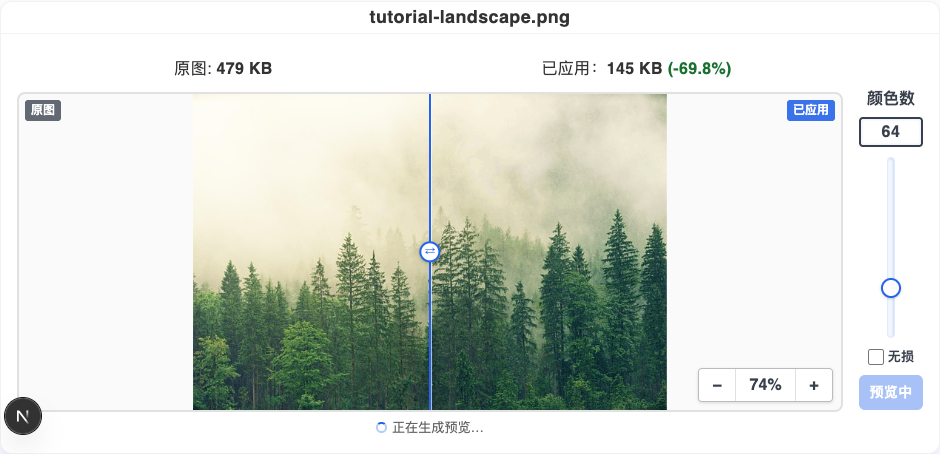
Figure 3: Use the divider to compare the PNG landscape, then adjust the color count if needed. Save one result or download the batch
When the comparison looks right, click Save on a file card to download that image. If several images have been processed, Save All downloads the results together as a ZIP archive.
Keep the original as your editable master. Use the compressed file for publishing or uploading, and avoid repeatedly saving a lossy result.
Figure 4: Save one image from its card, or use Save All for a batch.
Adjust Settings by File Format
After the first pass, adjust the controls for your format. These screenshots show Quality for JPEG and WebP, Colors for PNG and GIF, and Precision for SVG.
Compress JPEG: balance file size and detail with quality
Add a JPEG and click Compress. The tool estimates the source quality from its quantization tables. It aims for a useful web setting when the source is high quality, while avoiding unnecessary additional loss on an already heavily compressed source.
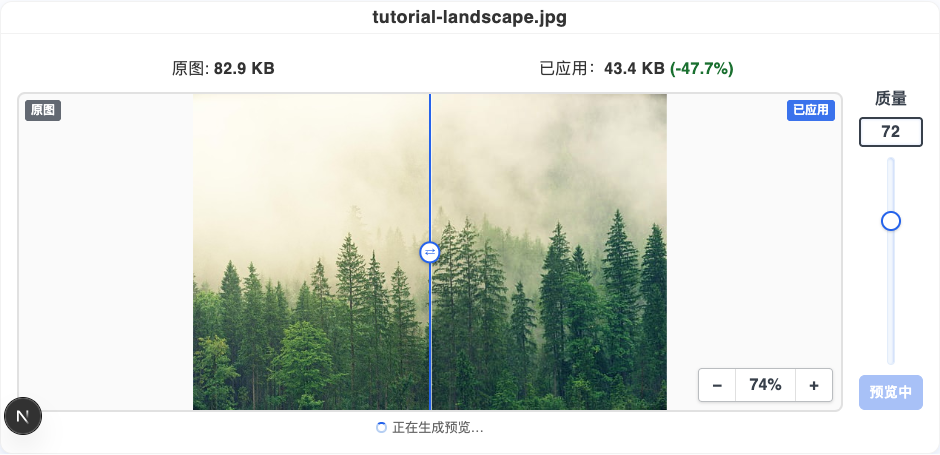
In the comparison panel, type a number or move the Quality slider. Higher values usually preserve more detail but make a larger file. Lower values save bytes; inspect text edges, faces, and gradients. Wait for the preview and click Apply only when satisfied.
Compress PNG: inspect the result, then reduce colors
PNG has no JPEG-style quality slider. The tool analyzes the image and can use palette compression. First check the original and result sizes on the file card. Icons, UI screenshots, and flat illustrations often benefit most.
To reduce the size further, turn off Lossless and lower Colors from 256 toward 128 or 64. Inspect text, gradients, and transparent edges after each change. Fewer colors can introduce bands, speckles, or hard transparency edges.
Compress WebP: adjust quality for the viewing context
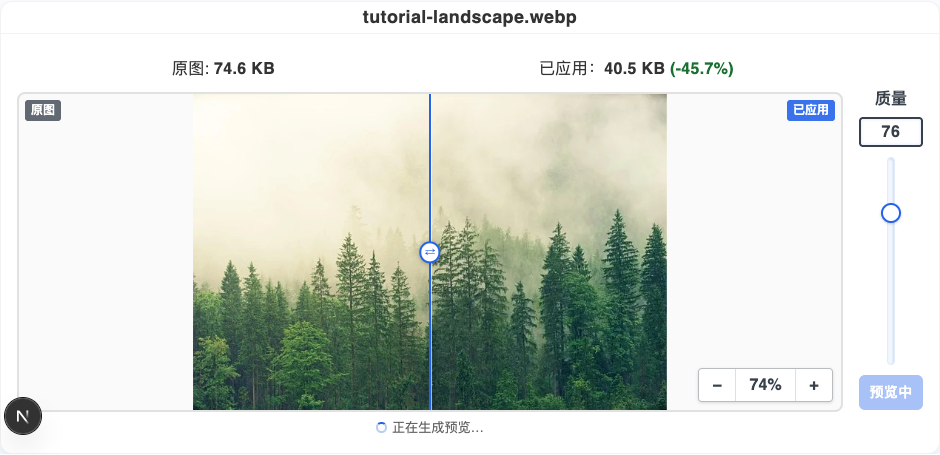
For a still WebP image, adjust Quality after the initial compression and wait for the preview. WebP can produce a smaller file at similar visual quality, but the gain depends on image detail, dimensions, and existing compression.
Move the divider over a face, product texture, or text, and judge the image at the size it will actually be shown. The Compress tab keeps the WebP format; use Convert if you need a different format.
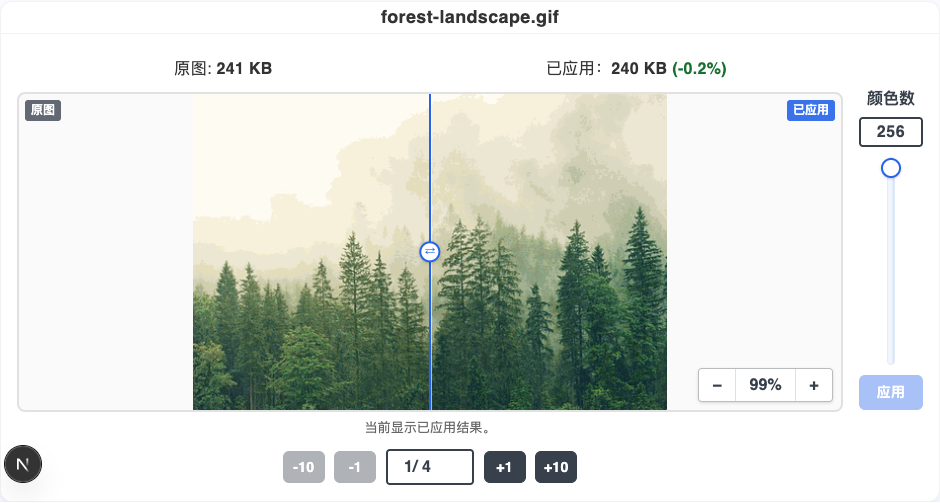
Compress GIF: adjust colors and inspect multiple frames
GIF uses a palette, so its control is Colors rather than Quality. Lowering the number of colors can reduce size, but do not judge an animation from its first frame alone. Text, thin lines, and gradients may change in later frames.
Use the frame controls beneath the comparison: −1 and +1 step through frames, while −10 and +10 jump further. Check the start, middle, and end before saving. The tool retains multiple frames; judge the result in playback too.
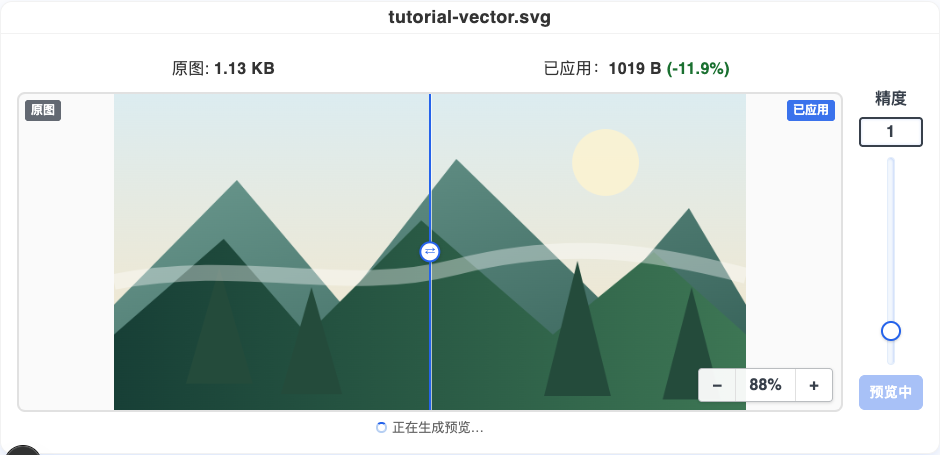
Compress SVG: lower coordinate precision and inspect paths
SVG is a vector graphic. Its Precision setting controls how many decimal places path and coordinate values retain. Reducing it shortens markup and may save bytes without a visible change on simple icons or illustrations.
Lower precision gradually and inspect thin lines, rounded corners, text paths, and curves. If shapes move or outlines become uneven, raise the precision again. Apply only after checking the preview.
Final Checks Before Downloading
- View the image at its final display size before reducing it further.
- Move the divider over text, faces, product edges, and transparency to check for blur, banding, and color artifacts.
- Keep the original for future editing; use the compressed version for uploading, publishing, or sending.
Understand How Compression Works
After your first compression, use the format principles below to make more informed choices about quality, color count, and output format.
First, identify the kind of image you have
There is no universal compression setting. A photograph saved as PNG may become larger, while lowering JPEG quality on an icon can ruin its edges. Start by inspecting the image rather than moving a slider.
Ask whether it contains continuous tones or sharp edges and a limited palette. Photos and gradients belong to the first group; screenshots, charts, logos, and QR codes belong to the second.
| Image content | Examples | Suggested format | What to adjust |
|---|---|---|---|
| Continuous tones | Landscapes, portraits | JPEG or WebP | Quality |
| Gradients with few colors | Flat illustrations | PNG8 or WebP | Colors or quality |
| Sharp edges, few colors | Icons, logos, UI assets | SVG or PNG8 | Precision or colors |
| Text | Screenshots, scans, charts | PNG, sometimes WebP | Colors; avoid heavy lossy compression |
| Animation | Reaction images, demos | Animated WebP or video | Frames, dimensions, colors |
| Vector graphics | Logos, icon sets, diagrams | SVG | Coordinate precision |
The more an image resembles a photo, the more suitable lossy compression becomes. The more it resembles a graphic, the more useful palette reduction or coordinate optimization becomes.
Lossy versus lossless: the decision behind every setting
Lossy compression permanently discards information to reduce bytes. JPEG and lossy WebP are examples. They take advantage of how our eyes perceive brightness, color, and fine detail differently.
Lossless compression preserves the decoded pixels exactly. PNG's DEFLATE encoding, GIF's LZW encoding, and simplification of SVG markup are examples. The savings are limited by the image's actual redundancy.
The practical difference is reversibility. A lossless master can be edited and saved without generation loss. Re-encoding a lossy file introduces another round of loss, even if the new quality setting is higher.
- Lossy: larger size reductions, irreversible, appropriate for final delivery files.
- Lossless: smaller reductions, preserves data, appropriate for editable masters.
- Keep an original master and create each published version directly from it, ideally only once.
JPEG: adjust quality, but inspect the source first
A JPEG quality number describes an encoding setting, not a permanent property written into the image. The file stores quantization tables. A tool can estimate an original quality setting by comparing those tables with tables generated for quality values from 1 to 100.
That estimate helps avoid pointless recompression. Raising a JPEG already encoded near quality 55 to 80 makes the file larger but cannot restore lost details. Lowering it to 40 may save bytes but creates another generation of artifacts. Start from the existing result and inspect it before changing anything.
| Quality | Typical size | Visible result | Useful for |
|---|---|---|---|
| 92–100 | Largest | Very close to source | Print, further editing, deliverables |
| 85–91 | Large | Differences hard to see | Product detail images |
| 78–84 | Medium | Usually acceptable at display size | General web photos |
| 65–77 | Smaller | Minor artifacts may appear | Inline images, thumbnails |
| 50–64 | Small | Artifacts visible | Small attachments |
| Below 50 | Smallest | Severe degradation likely | Only when the size limit is absolute |
PNG: reduce colors instead of looking for a quality slider
PNG does not have a JPEG-style quality setting. Its pixel data is encoded losslessly. Meaningful reductions often require changing the representation from true color to indexed color, where each pixel refers to one of at most 256 palette entries.
Palette reduction works well for icons, UI screenshots, and flat illustrations with a limited range of colors. On a photo, forcing many subtle colors into a small palette creates bands and blotches. If that happens, use JPEG or WebP instead.
| Image | Starting color count | Inspect |
|---|---|---|
| Monochrome icon or logo | 2–16 | Smoothness of edges |
| Colored icon or flat art | 32–64 | Gradients and transitions |
| UI screenshot with text | 64–128 | Text strokes and colored halos |
| Charts | 128–256 | Thin grid lines and labels |
Pay special attention to transparency. A limited palette can turn soft, translucent edges into hard edges. Compare transparent WebP when smooth alpha matters.
WebP: a strong option for web images
WebP supports lossy and lossless images, transparency, and animation. Its lossy mode uses directional prediction, which can preserve certain edges and gradients more efficiently than older JPEG encoding.
At comparable visual quality, WebP can often be smaller than JPEG, but the result depends on the source. Modern browsers support WebP widely. For an older client, use a picture element with a JPEG fallback.
- Transparent PNG: compare WebP; it may be smaller while retaining smooth transparency.
- High-quality JPEG: compare WebP at the same display size and visual quality.
- Already heavily compressed JPEG: conversion cannot recover lost detail and may save little.
- Simple flat graphic: palette PNG can still be smaller; measure both outputs.
GIF and SVG: two special cases
GIF uses a palette like indexed PNG, but also contains multiple frames. Reducing colors may help, while reducing dimensions or frame count can have a much larger effect. A complex animation can often be delivered more efficiently as animated WebP or video, if the destination accepts it.
SVG is a vector description made of paths and coordinates, not pixels. Shorter coordinate values and removal of redundant markup can reduce its size. Inspect curves after lowering precision, and keep the viewBox so the graphic scales correctly.