How to Set JPEG Quality: Lessons from Two Fox Photos
JPEG quality is an encoding setting, not a percentage of the image's remaining detail. Lower settings usually produce smaller files; higher settings keep more texture and smoother transitions. The useful question is which details matter in this particular photo.
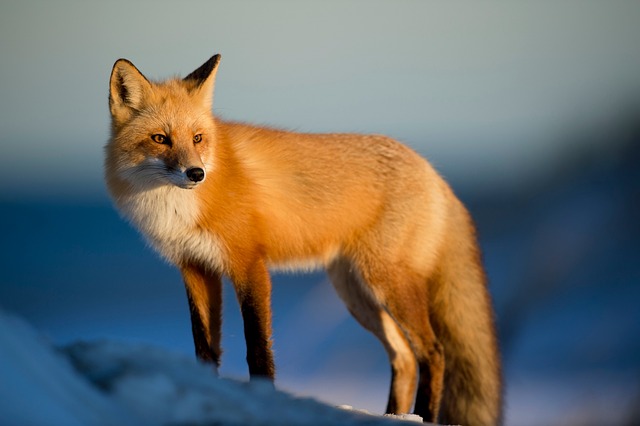
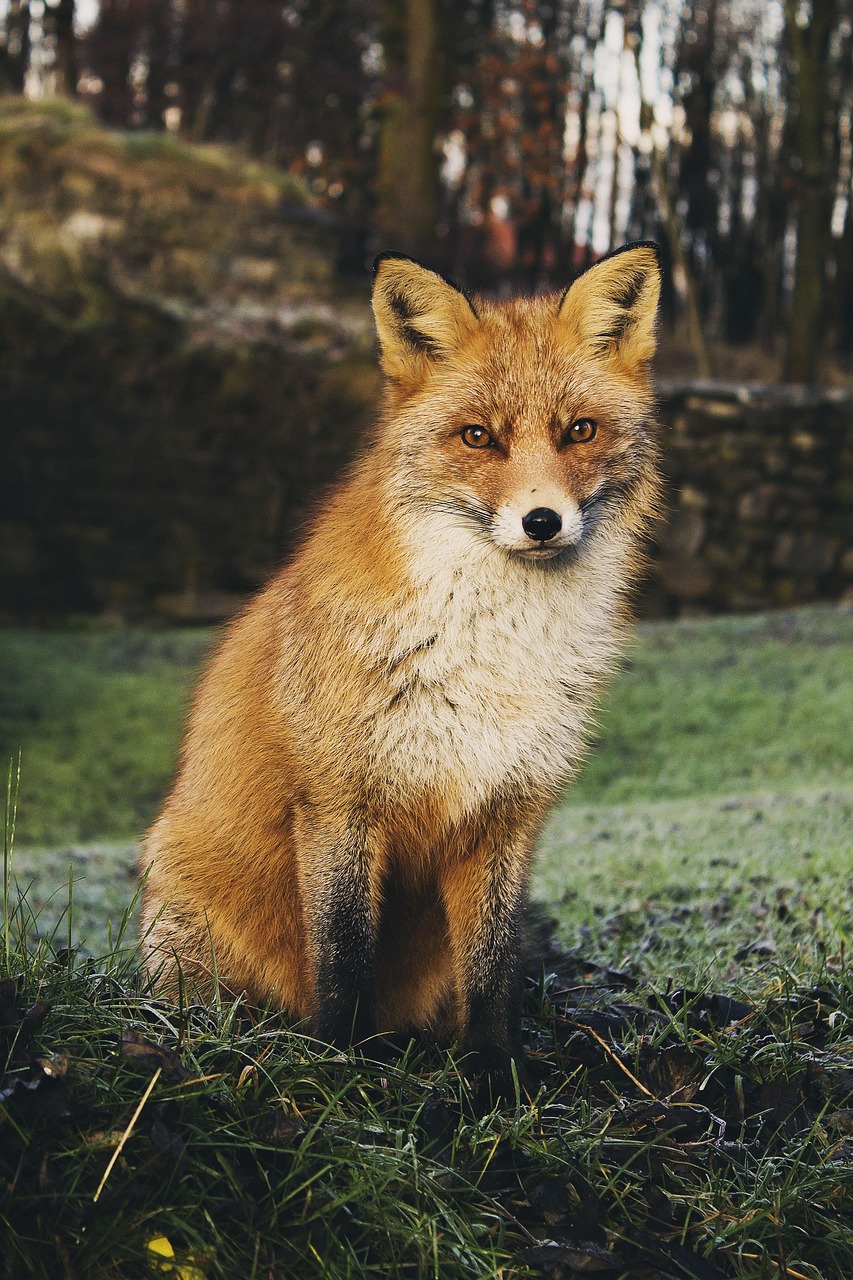
These two real fox photographs make that question concrete. The wide snow scene has pale fur against smooth blue-gray snow. The portrait in the woods has dense facial fur, eyes, grass, and vertical tree trunks. A single quality number cannot treat both scenes equally well.
Start with the automatic result, not a fixed quality of 80
For many web photos, quality 75–85 is a useful test range, not a rule. Display size, previous compression, and the amount of hair, foliage, or gradient all change the appropriate setting.
- A detailed source shown large: start around 80–85, then inspect the result.
- An image already compressed by a social platform: raising quality cannot restore what the earlier encode discarded.
- A small thumbnail: judge it at its real display size, not only at 200% zoom.
- Snow, sky, fog, and shadows: check for banding as carefully as you check the file size.
Keep the original. Compress once, open the comparison view, then change quality in steps of 5–10. Compare the same area at the same zoom each time.
What to inspect in each fox photo
The snow image exposes banding in its broad smooth background and halos around the tail and ears. The woodland portrait puts more pressure on fine fur, eyes, and the high-contrast edges of tree trunks.
| Area | Warning sign at low quality | Better response |
|---|---|---|
| Fur and grass | Texture turns into patches or watercolor-like smears | Raise quality by 5–10 and compare the size |
| Eyes, ears, nose | Sharp edges soften or collect colored halos | Stop lowering quality; keep more detail |
| Snow and blurred background | Smooth tones break into bands | Raise quality or compare WebP |
| Outer silhouette | Halos and stair-stepped edges | Inspect at 100%, not only as a thumbnail |
If these areas look natural at the final display size, squeezing out another few kilobytes may not be worthwhile.
Why raising the quality of an already compressed JPEG fails
JPEG quantization discards fine information first. Once fur and grass have been smoothed away, saving the decoded pixels at a higher setting merely spends more bytes describing the existing blur and artifacts. The number is not a repair control.
tobeimage estimates an original JPEG setting from its quantization tables. The automatic pass avoids blindly raising an already low-quality source toward a fixed target; if the new encoding is not smaller, it keeps the original file. See why a compressed image can grow for the other common causes.
A repeatable workflow for a publishable photo
Using the JPG compressor:
- Keep the untouched original; do not use a prior compressed result as the next input.
- Add the photo, click Compress, and record the before-and-after sizes.
- Compare fur, eyes, leaves, and gradients at a fixed zoom.
- If a smaller file is needed, lower quality by only 5–10 and inspect the new preview.
- When an adjustment saves little or damages the important detail, return to the prior setting.
For an upload with a hard file-size limit, crop and resize to the platform's required pixels before trying 100 KB or 200 KB compression. Target-size search changes quality, not dimensions. Reducing needless pixels often gives a better result than an extreme quality setting.
Landscape and portrait images need different checks
Orientation does not change the JPEG algorithm, but it changes presentation. The wide snow image may occupy only 800 pixels in an article; preserving imperceptible detail from a much larger source costs bytes. The portrait may fill most of a phone screen, placing the fox's eyes and fur close to the reader. Identify the final display width first, then decide whether to resize.
JPEG has broad compatibility, while WebP can sometimes deliver a smaller file at similar perceived quality. If the image needs transparency or contains text and icons, neither photographic default may be right. See the JPG, PNG, and WebP format guide.
Three checks before saving
- At the final display size, eyes, outlines, fur, and important textures are still clear.
- Smooth areas have no obvious bands, and edges have no colored noise or halos.
- The result is actually smaller. If the tool retained the original, recompression did not provide a reliable benefit.
Let the automatic result establish a starting point and change only what the image warrants. The complete compression tutorial shows the comparison panel and format-specific controls step by step.