Why Does My Compressed Image Look Blurry? A Troubleshooting Guide
"The compressed image looks blurry" describes several different problems. The format may not suit the image; the quality or color count may be too low; the pixel dimensions may be insufficient; or the source was already blurred. Identify the failure first, then change one variable at a time.
Is it blur, banding, a damaged edge, or a size mismatch?
- Smeared detail: hair, leaves, cloth, or brickwork lose texture, often from overly aggressive lossy encoding.
- Soft or colored edges: letters, icons, and lines gain halos, common when screenshots are saved as JPEG.
- Banding: sky, fog, skin, or shadows break into visible color steps, often after aggressive palette reduction or lossy compression.
- Whole-image softness: the pixel dimensions are too small for the size at which the image is displayed.
Compare source and output at 100% zoom, then judge the output again at its actual display size. A preview shown at a different scale can look softer without proving that the downloaded file lost the same amount of detail.
First choose a format that fits the content
Photos with continuous tones suit JPEG, WebP, or AVIF. Text screenshots, logos, charts, and graphics with transparency often suit PNG, SVG, or lossless WebP. Saving a degraded photo as PNG cannot restore its detail; it may only make the file much larger. Saving a transparent icon as JPEG removes transparency and can damage edges.
| Content | Start with | Inspect |
|---|---|---|
| Phone photo or portrait | WebP or JPEG | Subject texture, gradients, bytes |
| Screenshot or document | PNG or lossless WebP | Thin text and straight lines |
| Logo or flat art | SVG or indexed PNG | Curves, color count, transparency |
| Short animation | Animated WebP or GIF | Key frames, lettering, playback |
If uncertain, export the same photo as JPEG and WebP and compare at the same display size. The format guide explains their tradeoffs.
Resize before pushing quality very low
A 4032×3024 photo shown at 800 pixels wide contains far more pixels than the page needs. Halving both dimensions leaves about one quarter of the original pixel count. That can save more bytes than dragging quality from 80 to 40, with fewer visible artifacts.
Ask how wide the image will actually appear, whether the receiving platform specifies exact pixels, and whether you will edit the original later. Keep a master and resize a copy. This tool's target-size mode searches quality; it does not change dimensions. Crop and resize in a local editor first, then try a 100 KB or 200 KB limit if required.
JPEG and WebP: lower quality in small steps
Start with the automatic output. If it is too large, lower quality by 5–10, preview, and compare the same region. Examine text, hair, foliage, product texture, and high-contrast outlines. Quality 75–85 is a useful starting test for many web photos, but not a fixed answer across encoders or images.
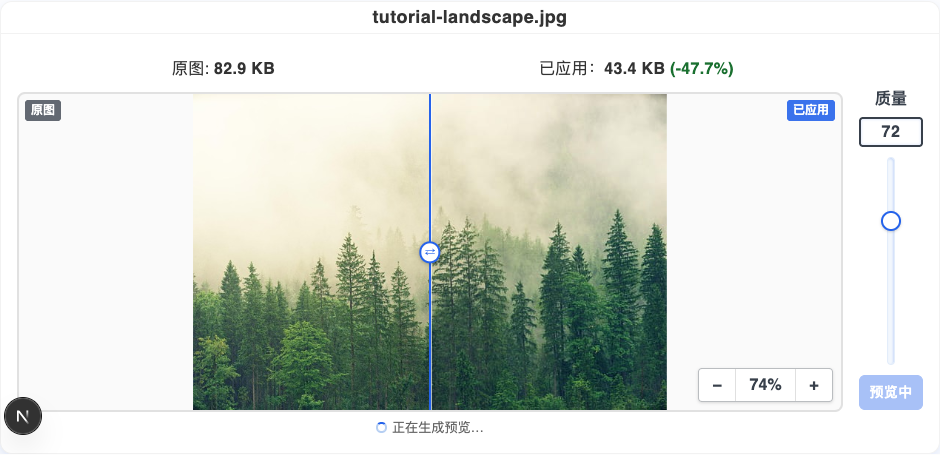
Raising the quality of an already heavily compressed JPEG does not recover its missing texture. Return to the original whenever possible. Portraits and product images deserve more conservative settings than a small background thumbnail.
PNG: test color count, not JPEG quality
PNG's lossless encoding does not expose a JPEG-like quality scale. To make a PNG much smaller, a tool may reduce it to a palette. That is useful for flat art and screenshots but can produce bands in photographic gradients or hard edges in semitransparent areas.
Inspect small text, antialiased strokes, transparent boundaries, and gradients. If damage appears, increase the color count or compare JPEG/WebP for a photo. The PNG8 guide explains why 64 colors can work for one image and fail on another.
Animated GIF: inspect more than frame one
An animation can look fine in its first frame and fail when later frames add subtitles or new colors. Lower GIF color count gradually and inspect the beginning, middle, and end with the frame navigator. If a small palette cannot meet the size target without damage, dimensions, frame rate, or format may be the real constraint. Compare animated WebP or video when your destination supports them.
Use the comparison divider, not only the savings percentage
File reduction alone cannot tell you whether the result is usable. Fix four inspection points: small text, faces or subject outlines, smooth gradients, and dense textures. Move the divider over the same place after each setting change.
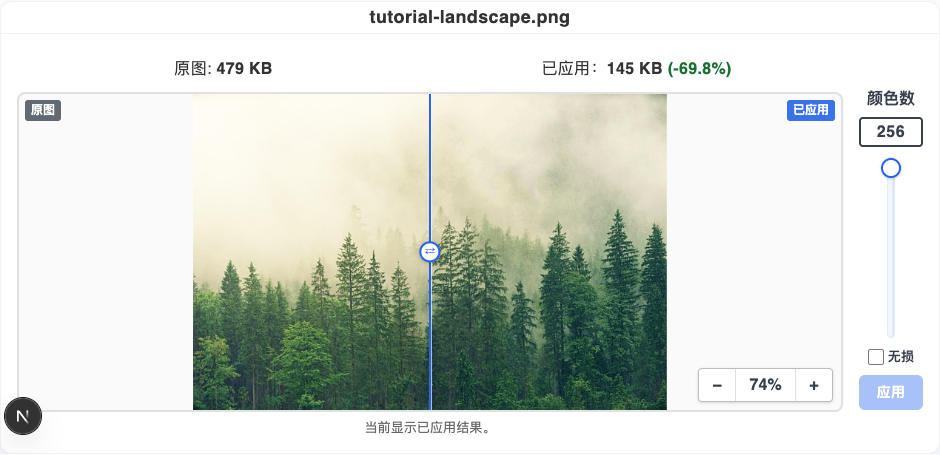
If a preview fails, return to the previous setting or restart from the original. Repeatedly encoding an already lossy output compounds damage.
Hard file limits force a tradeoff
For a 100 KB or 200 KB upload, decide pixels first, choose JPEG or WebP, then search quality. If the lowest tolerable quality still exceeds the limit, resize; do not claim that a too-large result met the target. The target-size guide details the search and practical starting points.
Before saving, confirm the format fits the content, pixel dimensions fit the destination, critical details survive, and the output is smaller. Check multiple GIF frames and SVG curves where applicable. Keep an original for editing.
The goal is a file that is clear enough for its intended use and light enough to deliver. Follow the complete image compression tutorial to see every format-specific control.